



Call Parking
Call Parking, once switched on, offers a simple way to transfer a call to another phone. It works much like parking a car: you have a call, you "park" it, step away, and then either you or a colleague can pick it back up.
To show or hide call parking, see our Configuring Desktop guide.
When you have a call you'd like to park, open babblevoice Desktop and click the car icon on the active call (see below).

Your call is now parked, freeing up your phone for other calls. While a call is parked, it will appear on your Desktop. In the menu on the right-hand side of the screen, you'll see an icon indicating how many calls are currently parked; for example, if one call is parked, it will be shown as below.
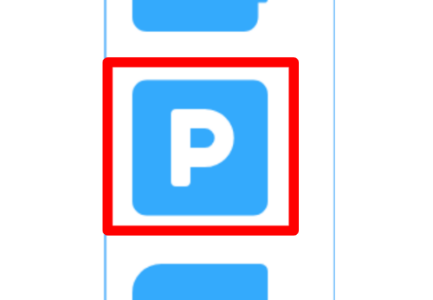
Click this icon to open the call parking screen, which shows all parked calls and who parked them.
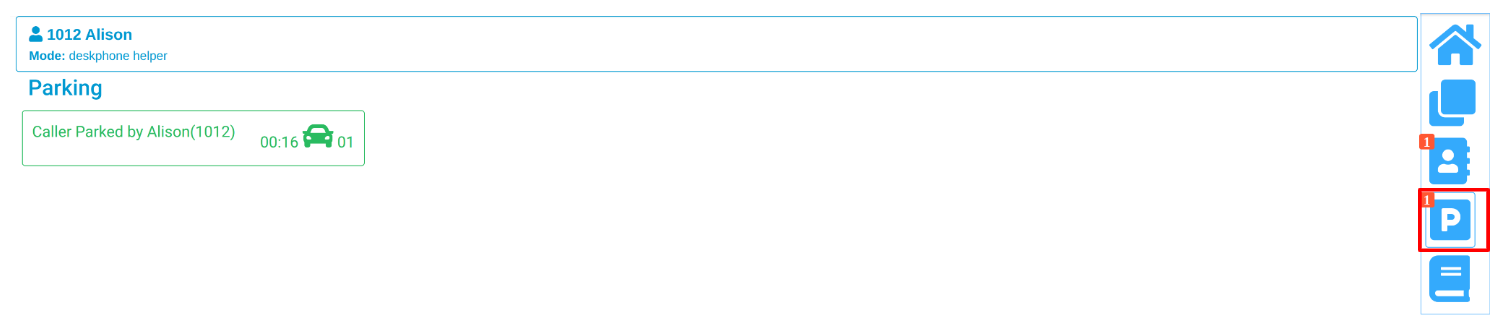
Picking up a parked call
To pick up a parked call, lift your phone handset and click the call you want to answer. Alternatively, clicking the call without lifting the handset will answer it on speakerphone. Call parking is also available without babblevoice Desktop, though using the visual interface makes it much easier to manage.
Please contact us if you have any further questions.